Overview
The TaxLab home screen is the main starting point for accessing entities in the software. It lists all entities in an organisation, with tools to search, filter, open, create, archive, or delete entities. This article explains the key parts of the home screen and how to navigate entities.
TaxLab home screen navigation
When you first sign into TaxLab, you will land on the TaxLab home screen. The menu bar at the top of the page has 3 options:

- Home: Selecting Home will return you to the TaxLab home screen. Alternatively, selecting the TaxLab logo in the top right will do the same.
- Workflow: This is where you can find the Payments, Returns and Correspondence tasks for entities.
- Administration: This is where you can find activities to help with the management of your organisation: Entity Management, Contacts, User management, Report templates, and Integrations.
- The bell icon will notify you of any unread product announcements.
- Selecting your user icon will show you a list of recently accessed returns and activities, along with My Profile (add an avatar, edit your contact details), and Log Out.
Entity navigation
The TaxLab home screen displays a list of all the entities you have access to, as a default. To find a specific entity, use the search box and search by entity name or tax file number.
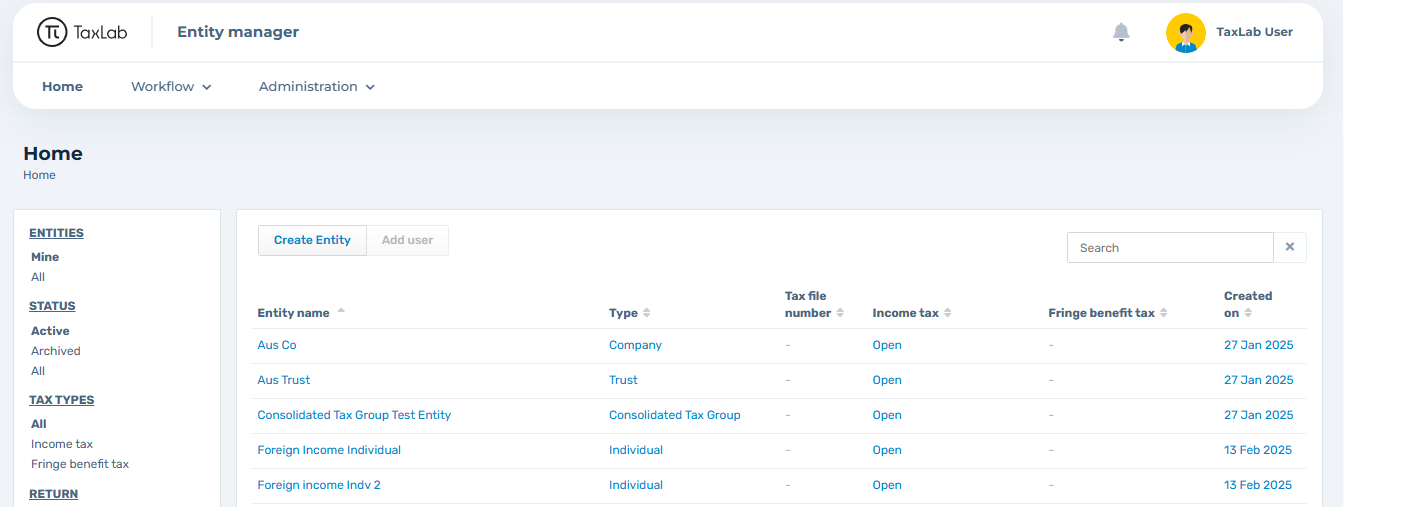
On the left hand side of the screen, under ENTITIES you can select All to see all entities that are within your organisation. You can filter entities further using the options under STATUS, TAX TYPES, and RETURN. Entities that you have access to will be in a blue font, and those that you have no access to will be grey.
Selecting the name of the entity will take you to the details tab for that entity. If your entity has an active subscription, you will see Open displaying in the Income tax or Fringe benefit tax column. Selecting this will take you directly to the most recent tax return for that tax type.
Get access to an entity
Entity access is managed by existing users, or your organisation administrators.
To identify who has access to an entity:
- From the TaxLab home screen, select the name of the entity.
- Select the Users tab. Some organisations have a feature enabled that allows users to add themselves to an entity; if this is the case for your organisation you will see a button that says "add self to entity".
- Select a user’s name to view their email address.
- Contact the user to request access to the entity.
Alternatively, contact an organisation administrator to request access to the entity.
Troubleshooting and FAQs
Can't find an entity
- If you're unable to find the entity you are looking for, check that you have selected All under both the ENTITIES and STATUS headings. If you are still unable to find your entity, contact your organisation administrator to confirm that the entity is linked to your organisation.
Next steps
Next, add or confirm entity details.
Related articles
Add or manage entities in your organisation
Was this article helpful?
That’s Great!
Thank you for your feedback
Sorry! We couldn't be helpful
Thank you for your feedback
Feedback sent
We appreciate your effort and will try to fix the article