Overview
Migrating to TaxLab from another tax system is a great opportunity to review how your tax administration processes work. TaxLab has been designed to automate many of the tasks and jobs you may have previously completed manually in your old software. This article covers:
- How TaxLab processes map to your current daily processes
- What you don't need to do anymore because TaxLab does it for you
We've covered some common tax administration use cases below:
- Reviewing tax transactions
- New IRD numbers added to your agency
- Changes to balance date, provisional tax status or frequency, or extension of time status
- Income tax returns
- E-filing income tax returns
- Monitoring the progress of income tax return filing (filing stats)
- Checking income tax return assessments
- Requesting and confirming tax transfers
- Monitoring the payment of terminal tax
- Tax pooling
- Preparing provisional and terminal tax lists
- Sending provisional and terminal tax letters
- Monitoring the progress of provisional tax payments
General tax administration
Reviewing tax transactions
In Taxlab, income tax transactions for clients on your tax agency are automatically imported and posted each day. These appear in the tax payments section of each client record, under the relevant tax year. Tax transactions are taken as given; there is no requirement to check these off daily. In some legacy tax software programs, all income tax transactions for the clients are listed daily, and need to be manually ticked off by an administrator before they are added into the system. Taxlab accepts all transaction from IR as given, so no process of reconciliation is required. Read more below about requesting and confirming tax transfers.
New IRD numbers added to your agency
If the TaxLab and IRD client sync has been enabled, Taxlab will daily create new entities for any IRD numbers that are not yet present in your TaxLab organisation. This means that when you add a new client to your IRD agency, the next day it will appear in Taxlab for you to assign staff. Entities are assigned by default to the user that originally added the IRD integration, usually an administrator.
Changes to balance date, provisional tax status or frequency, or extension of time status
Taxlab does not automatically update if the IRD changes entity records, to allow for confirmation from your organisation. If a change has been made by IR and needs to be updated in TaxLab see add or edit entity details.
Income tax returns
E-filing income tax returns
Like any tax software, Taxlab is a tax filing engine that e-files directly to Inland Revenue. Taxlab uses a unique CHECKSUM combination of letters and numbers, which prints on a final copy of a tax return. This means you can confirm that the return a client has signed is the exact same version as the one you are filing. To read more about how to e-file a return see here.
Monitoring the progress of income tax return filing (filing stats)
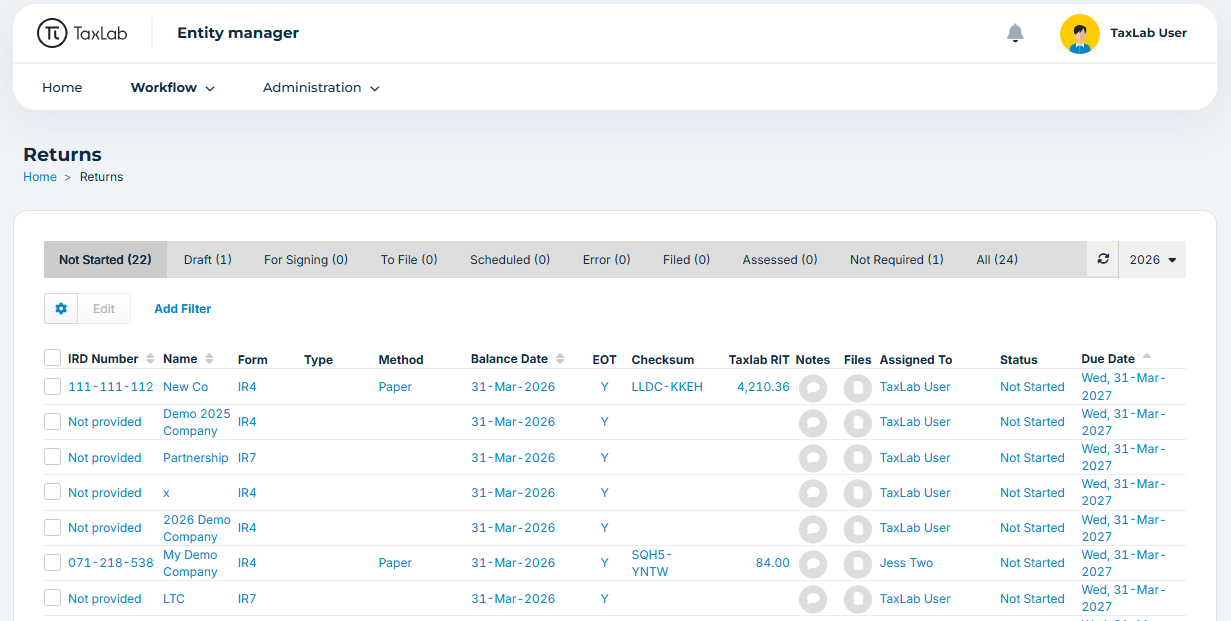
The income tax return tasks screen displays the filing status of every income tax return for clients in Taxlab, by tax year. You can use this screen to monitor progress. The Add Filter button allows you to filter by a number of fields including Partner or Manager, balance date, and form type to name a few. You can also use this screen to change the Status of returns, such as any that are not required.
Checking income tax return assessments
Taxlab allows you to monitor the filing status of an income tax return from the income tax return tasks screen. Filter by tax year to see every return for that period in the system, and which state they are in. Once a return has been assessed by the IRD it will appear on the Assessed tab, where you can see any variances between the expected assessment in Taxlab, and the actual IRD assessment.
Requesting and confirming tax transfers
Income tax transfer requests are entered into Taxlab as part of the income tax return process, and are submitted to IR when the return is filed. They are marked with a Pending badge.
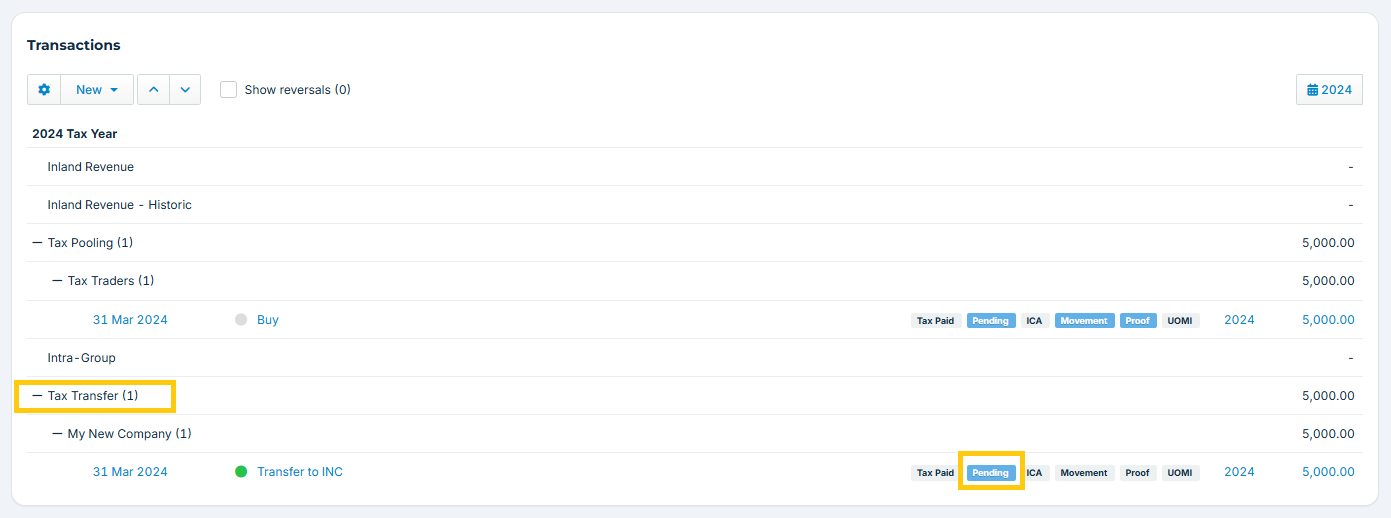
To see when transfers have been processed, we recommend reviewing the terminal tax payment tasks screen on a weekly basis, to identify returns with transactions in the "Pending" column. 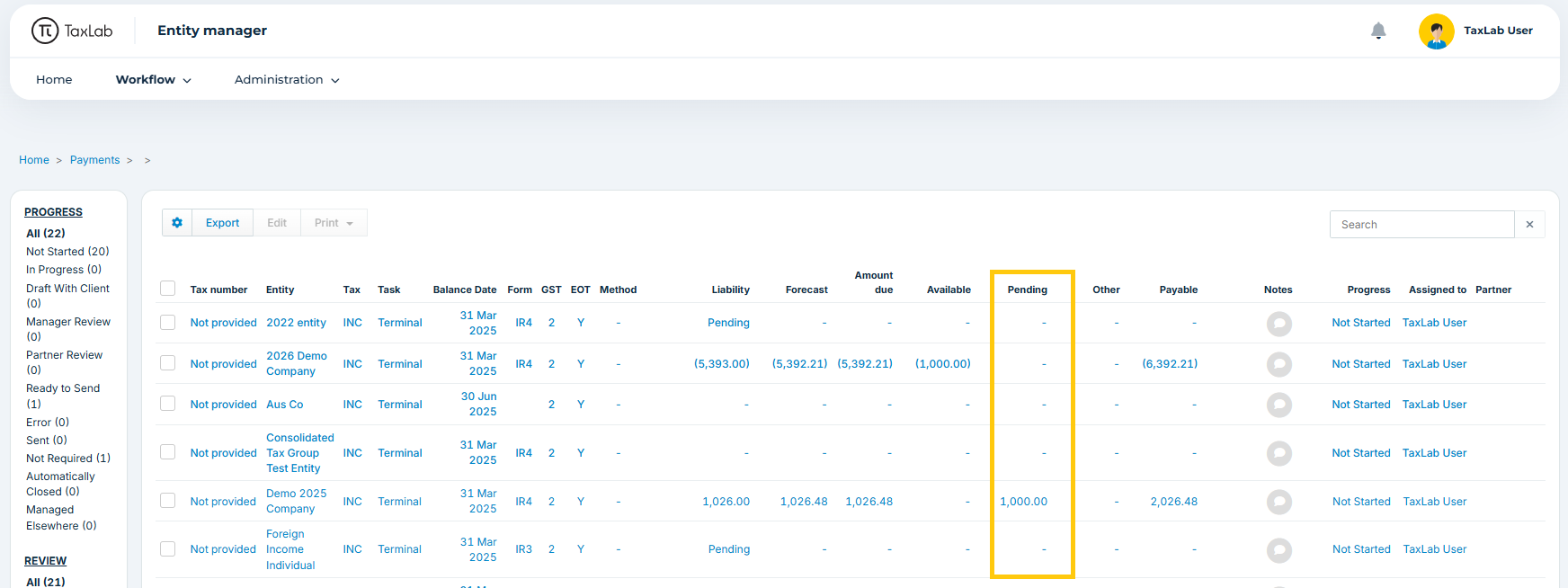
Selecting the task will open it in a new tab, and you'll be able to see if the return has been assessed and the transfer been processed.
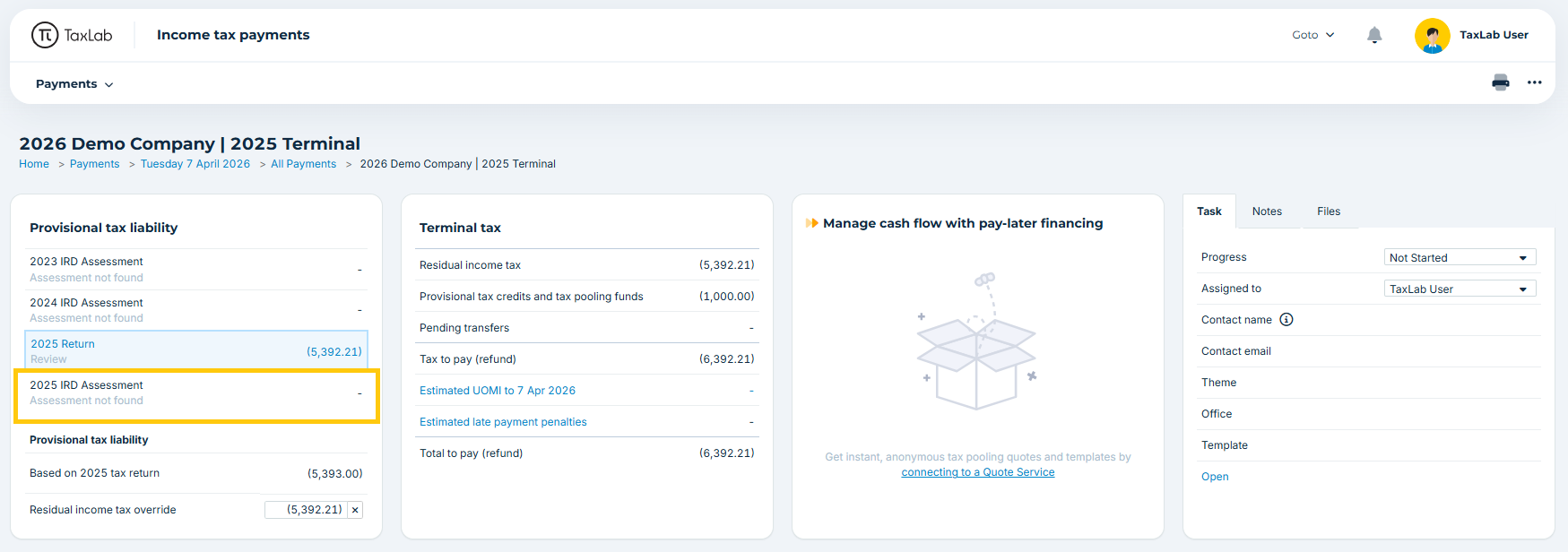 The processed transfer will now be listed in the tax transactions section, which means it is now double counting. To remove the original pending transfer:
- from the terminal tax task select Return to open the return
- Select the more options menu in the navigation bar, and set the tax return to Read/write.
- From the navigation bar select Workpapers > Tax Payments.
- Unmark the transfer as Pending, then set the return back to Read-only.
If the transaction doesn't let you untick Pending, it is because the other side of it is also locked (for example it may have come from another entity or another tax year). In that situation, set both to Read-write, untick Pending, then set both back to Read-only.
Monitoring the payment of terminal tax
You can use the income tax return tasks screen, or the terminal tax payment tasks screen to monitor income tax payments and transfers for a specific tax year. At any point in time, or at due date (if using terminal tax payment tasks) you can see the balance of RIT owing in Taxlab. They can be managed by exception, as if the balance is not $0, the client still owes tax. To read more about the reporting capabilities for terminal tax see here: Prepare terminal tax payment notices.
Tax pooling
Taxlab has integrations to both main tax pools. This means that transactions for tax pooling so not need to be manually entered when preparing payment schedules or provisional or terminal tax letters. To read more about enabling these see here: Set up a tax pooling transaction feed integration.
Taxlab also offers an integrated quoting service, so that quotes can be provided to your clients for provisional and terminal tax. To read more about how this service works see here: Set up a tax pooling quote service integration.
Provisional tax
Preparing provisional and terminal tax lists
As an administrator user of Taxlab, your view of each tax payment date will show all open tasks for clients. This means you can see every provisional and terminal tax task, who they are assigned to, and the progress of the task at any time.
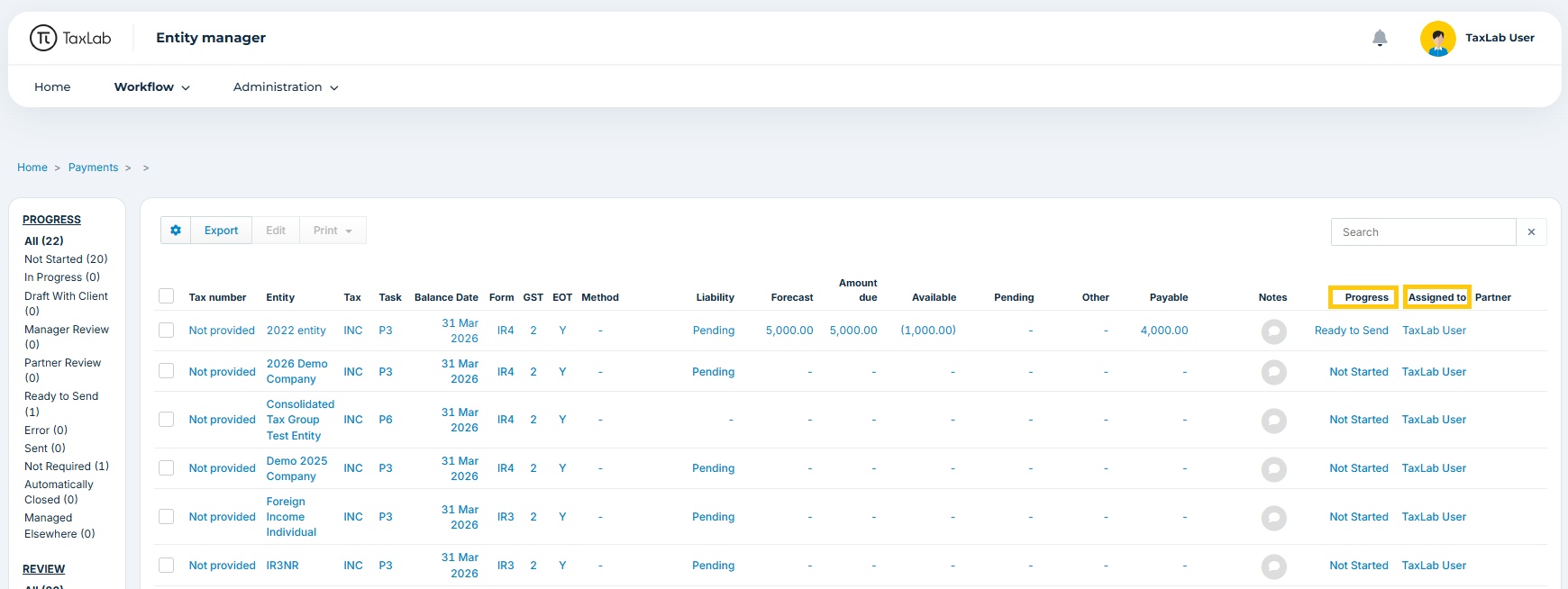
If a task does not have a user assigned (for example all originally assigned staff have left and the client has not been reassigned) the task assignment will automatically default to you an administrator. Lists can also be exported to excel and distributed internally; however we do not recommend this approach as it means staff are not directly in live data (as any tax transactions from the IRD will appear automatically each day), and do not build familiarity with the system.
Sending provisional and terminal tax letters
Provisional tax notices can be emailed directly from the system once it has been configured for your organisation. they can be sent from any of the assigned email addresses (Partner, Manager or Consultant). If an email bounces it will be set back into "ready to send" status and logs will record what has happened. To read more about sending letters see here: Email income tax payment notices
Monitoring the progress of provisional tax payments
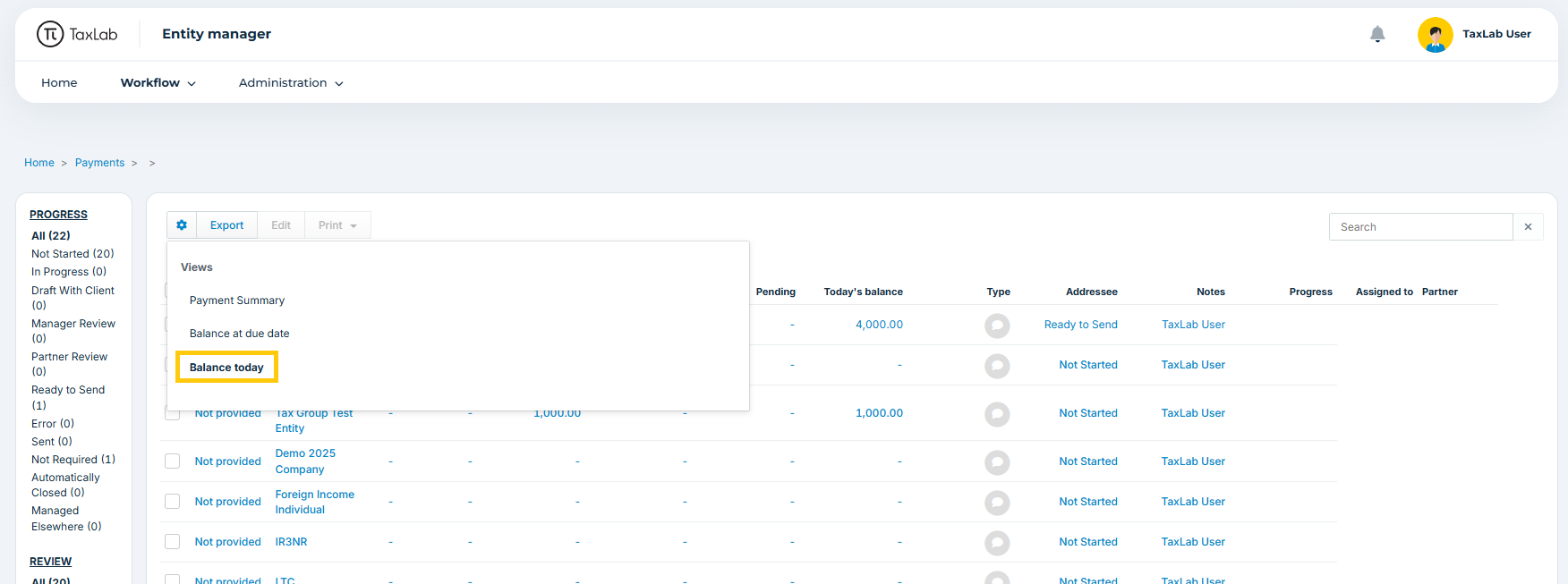
As well as monitoring the progress of tasks during provisional tax time, you can use Taxlab to see whether clients have made payment. This is a good indicator that they have opened and understood the notice. To manage progress, select the settings cog and change the view to Balance today - this displays the balance remaining to pay today. There is also a Balance at due date view which takes into account any future dated transactions.
IRD Mail
Taxlab can retrieve IRD letters for clients automatically each day and surface them as tasks in the system. Letters are automatically assigned as tasks to the staff member responsible for that client, for them to take action. Read more here: Working with correspondence tasks.
Other processes
Any process not addressed above means that TaxLab does not treat this any differently to your current system, and you can continue to manage that as you currently do.
Was this article helpful?
That’s Great!
Thank you for your feedback
Sorry! We couldn't be helpful
Thank you for your feedback
Feedback sent
We appreciate your effort and will try to fix the article