Overview
FBT benefit data in TaxLab can be imported using the FBT import template, or entered manually. When importing benefits, it is important to ensure they are allocated to the correct employees or pools. This article explains both methods and includes guidance on non-attributed benefits.
The FBT import template
The FBT import template is an Excel file, used to import an entity's benefits, vehicles, drivers, and employee data. It outlines the required structure and formatting to ensure the data is correctly imported. The template provides guidance on required column headings (you must use the exact header names), examples of correct formats, indicators showing whether a field is required or optional, and descriptions of each data item.
Required fields
The following fields must be entered for a successful import:
- employee_id
- description
- asset_id
- days_available_for_private_use
All other fields are optional, but can be included to provide additional data for your records.
1. Download the template
- From the entity's FBT calculation, in the navigation bar select Workpapers > Benefits.
- From the Benefits screen, select Import.
- From the Import Benefits pop-up window, select Download Import Template.
The same template can be downloaded from any Import Benefits pop-up window within the FBT module.
2. Prepare your data
- Open your source data alongside the TaxLab template.
- Copy the Required column headings from the TaxLab template and paste them into the corresponding columns in your source data, replacing any existing headings.
- Ensure all data matches the corresponding headers (e.g., employee_id column must contain the employee identifier).
- Ensure character limits are not exceeded: employee_id, membership_number, asset_id, make, cost_centre all have a 50 character limit.
3. Import benefits
- In Excel, select and copy the previously prepared data as above (including the column headings).
- In TaxLab, from the entity’s FBT calculation, select Workpapers > Benefits.
- From the Benefits page, select the relevant Quarter.
- Select Import.
- Paste the data into the Import Benefits popup window.
- Select Import.
A green banner will confirm the number of records imported. Always check the imported data to ensure accuracy.
Add non-attributed benefits
To import non-attributed benefits, use one of the following as employee_id:
- For non-attributed benefits provided to major shareholder-employees: "Shareholder Pool" or "POOL1".
- For non-attributed benefits provided to employees: "Employee Pool" or "POOL2".
Add benefits manually
- From the Benefits screen, select the relevant Quarter.
- Select the relevant benefit category.
- Select New.
- In the Search box, type the employee name, and select from the drop-down list.
- Enter the benefit amount and any other details.
- Select Save.
Edit benefits
Benefit data can be edited by reimporting, or manually one-by-one:
- From the Benefits screen, select the relevant Quarter.
- Select the relevant benefit category.
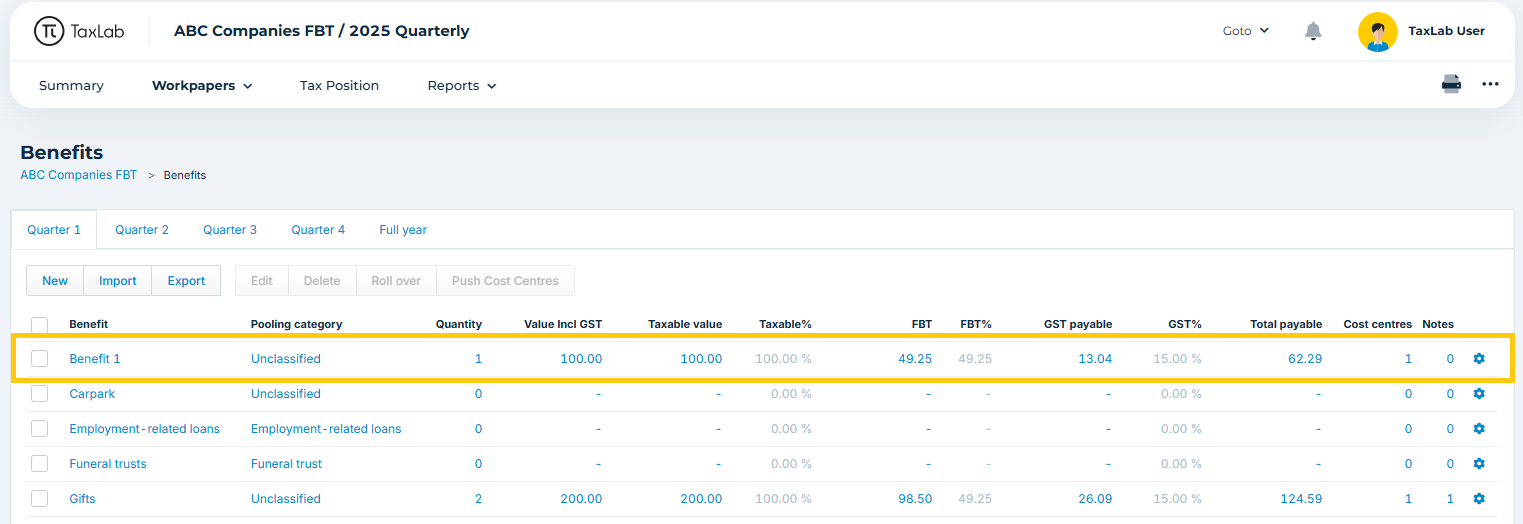
- Select the line item of the benefit to edit.
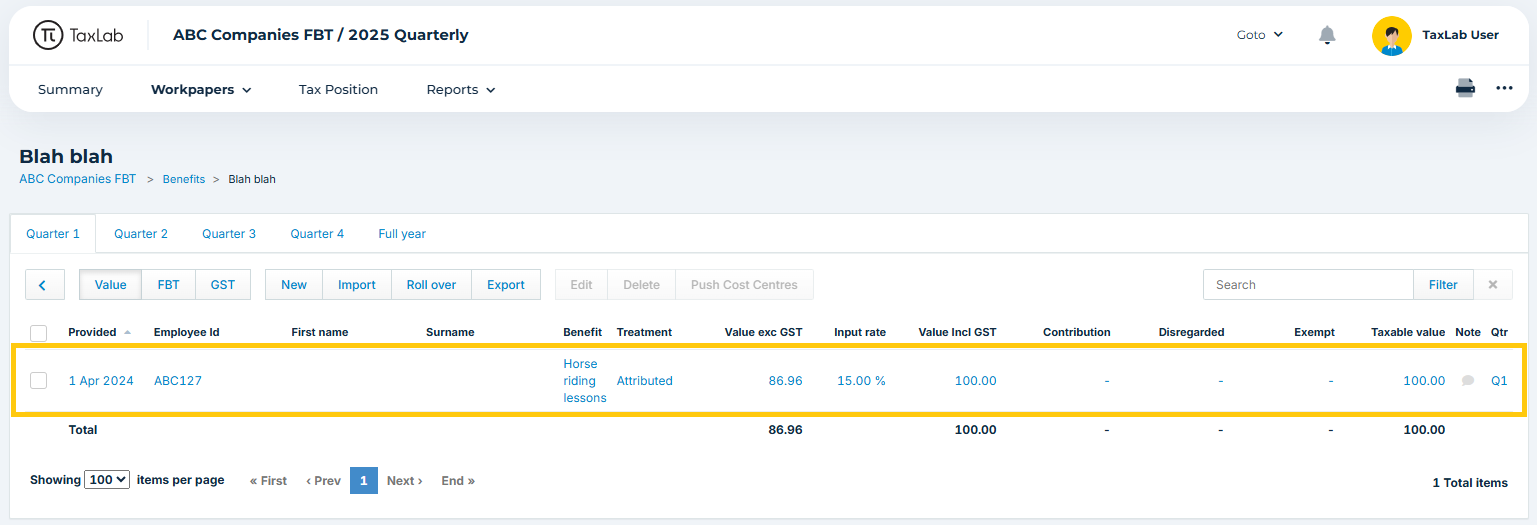
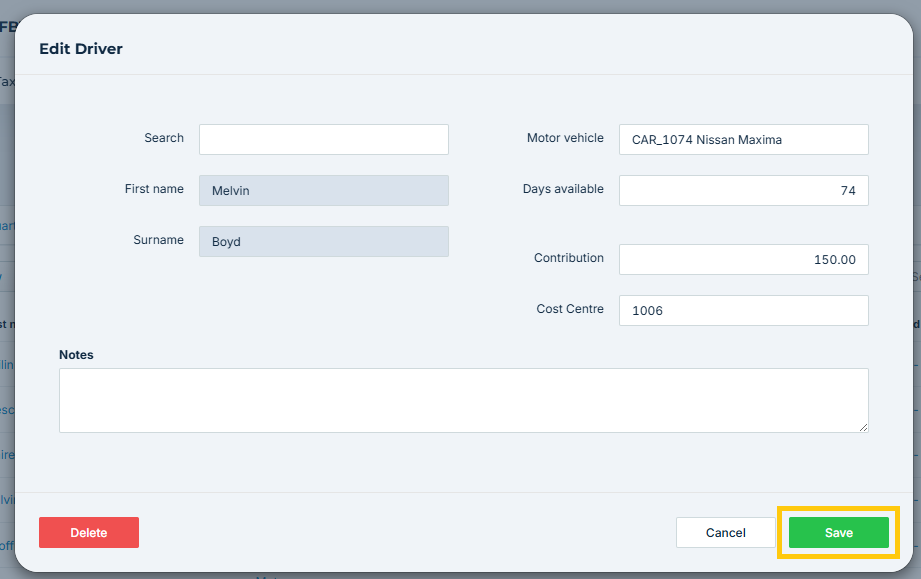
- In the pop-up window, make changes as required.
- Select Save.
Troubleshooting
"Your data isn't in a format we recognise"
- Check that headers match the TaxLab FBT import template.
- Verify that data in each field matches the header (e.g. Make contains the vehicle make).
- Ensure character limits have not been exceeded
The benefit provided date does not match the import
- Use either quarter_paid or date_paid when importing, not both. quarter_paid will override date_paid, if both are included.
Benefits incorrectly show "Not liable for GST" or "Liable for GST"
- Use either the value_incl or value_excl when importing not both, (whichever you prefer to report your benefits), as using multiple columns can affect the GST calculations.
Adjustments to prior periods
If changes are required for previous quarters:
- Export the relevant reports before making any changes.
- Delete the incorrect entries.
- Re-import the correct data.
Any corrections made will be reflected during the annual attribution wash-up process.
Related articles
Was this article helpful?
That’s Great!
Thank you for your feedback
Sorry! We couldn't be helpful
Thank you for your feedback
Feedback sent
We appreciate your effort and will try to fix the article