Overview
The IR10 return is available by default for most income tax returns, but can be toggled on or off.
The IR10 workpaper is located alongside the entity's trial balance. It assigns trial balance accounts to the appropriate IR10 disclosure.
The workpaper can be completed:
- in bulk
- by individual account
- via the import from Xero function
View the IR10 workpaper
To view the IR10 workpaper:
- From the entity's tax year summary, in the navigation bar select Workpapers > Accounts
- (if applicable) Select Trial Balance
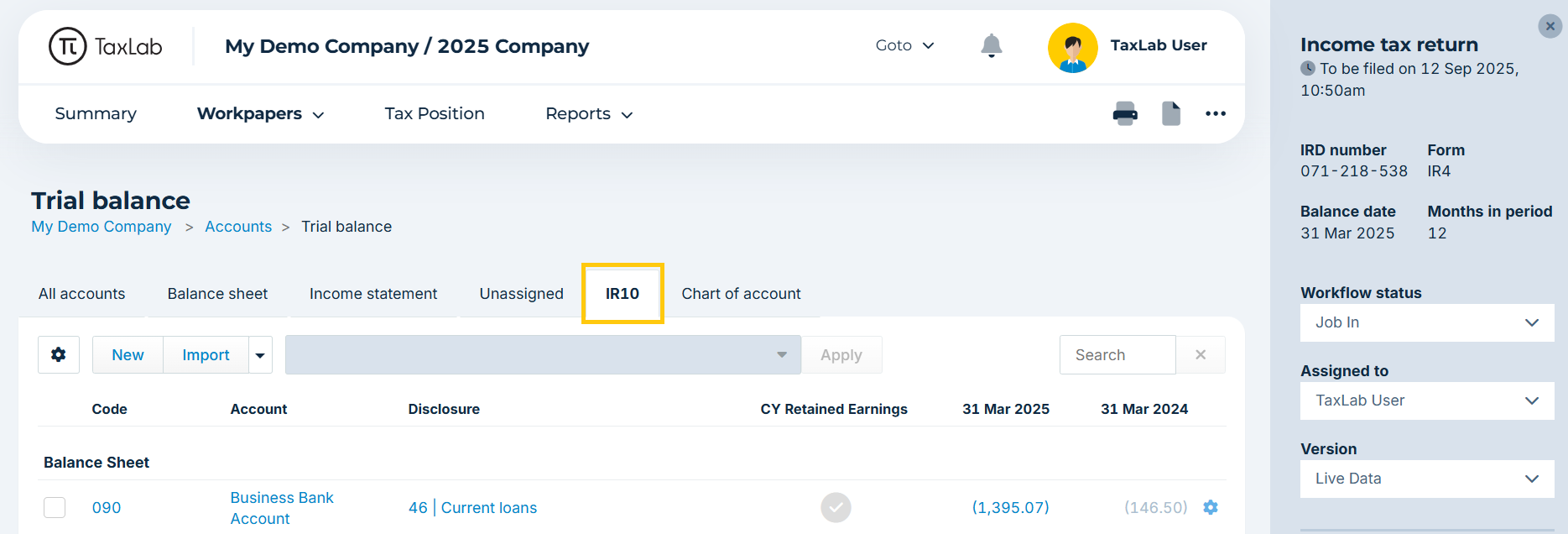
- Select the IR10 tab
To view the IR10 return as it will be submitted to IRD:
- From the entity's tax year summary, in the navigation bar select Reports > Tax Return forms.
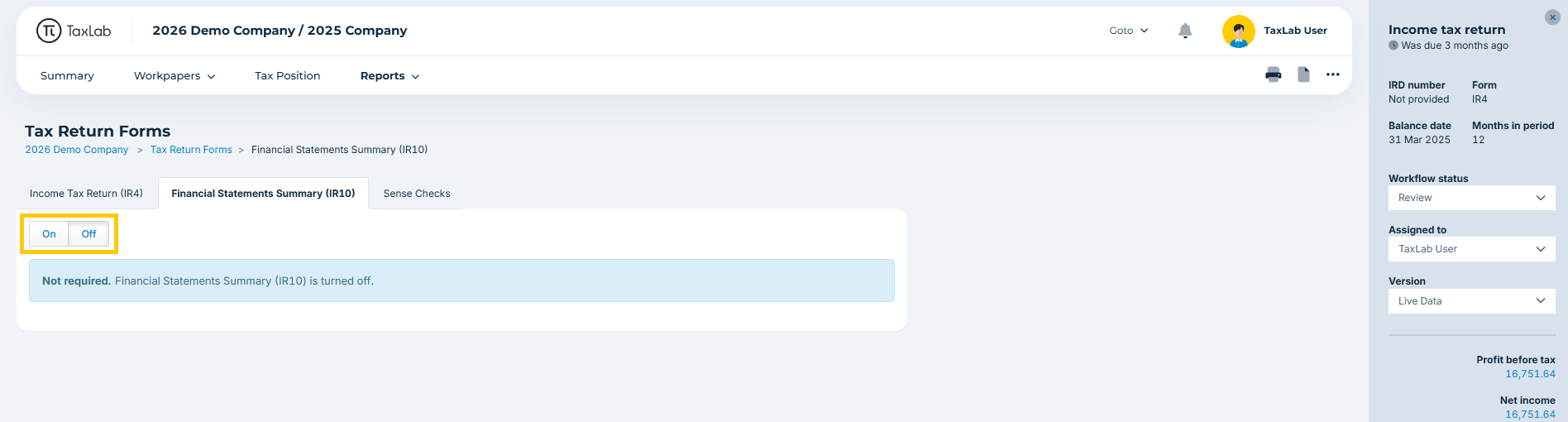
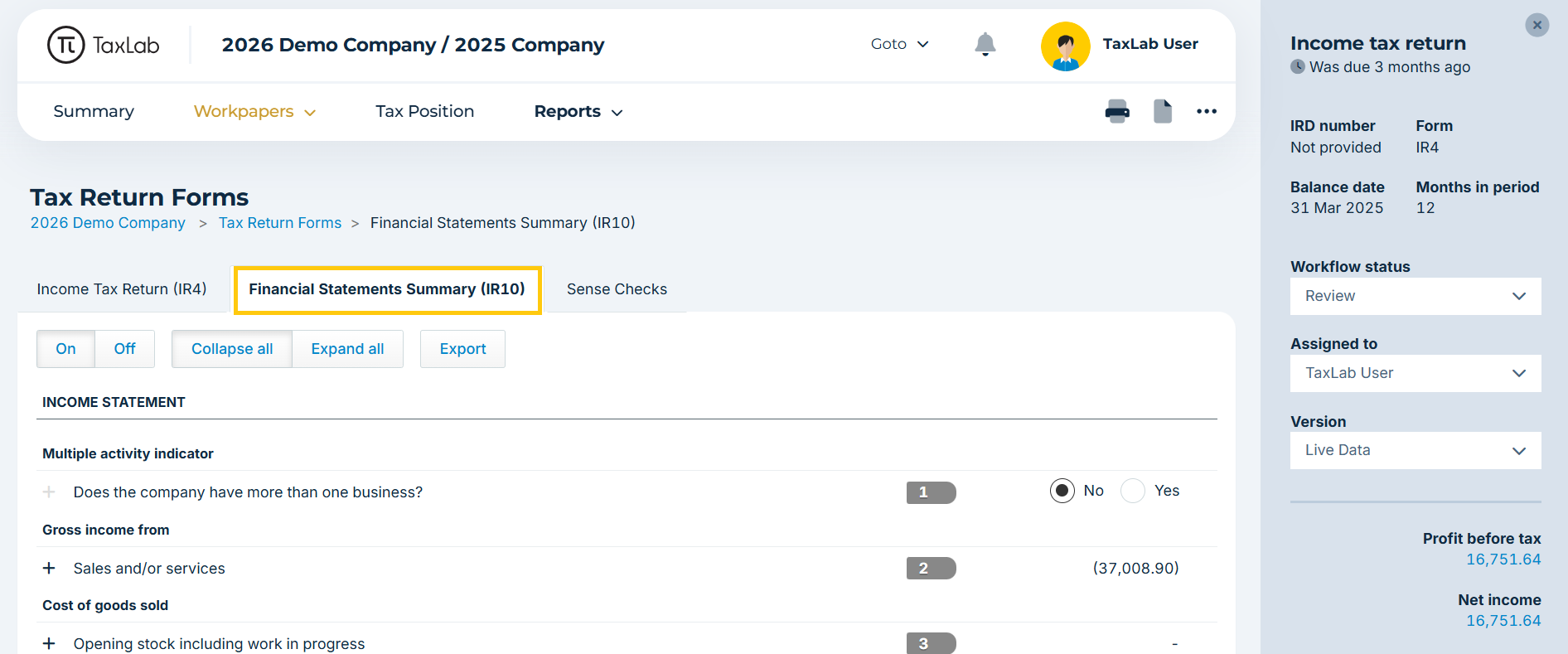
- Select the Financial Statements Summary (IR10) tab.
If the IR10 report is not displaying, toggle to On
Alternatively, in the navigation bar, select the More Options menu 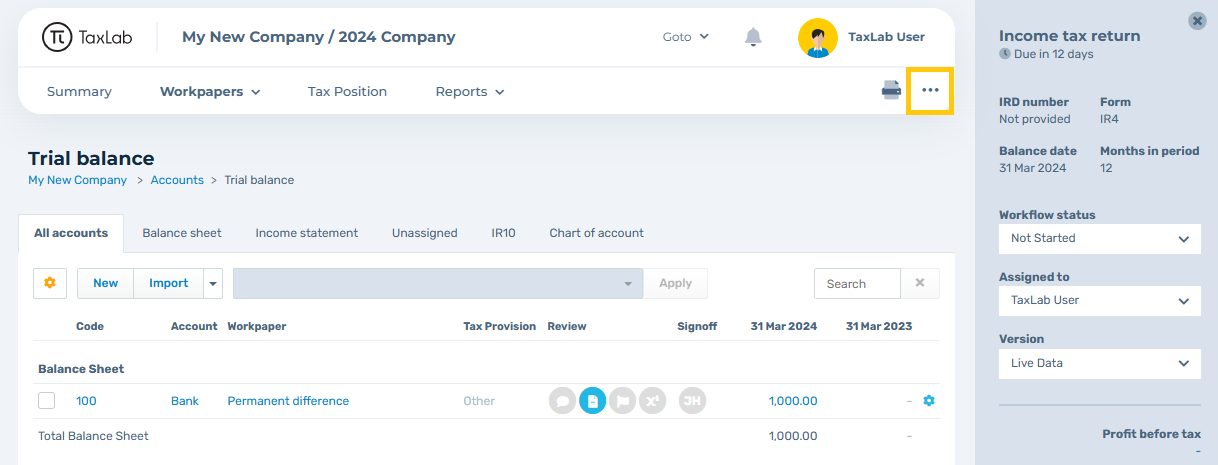
Scroll down and toggle the Financial Statements Summary (IR10) to Yes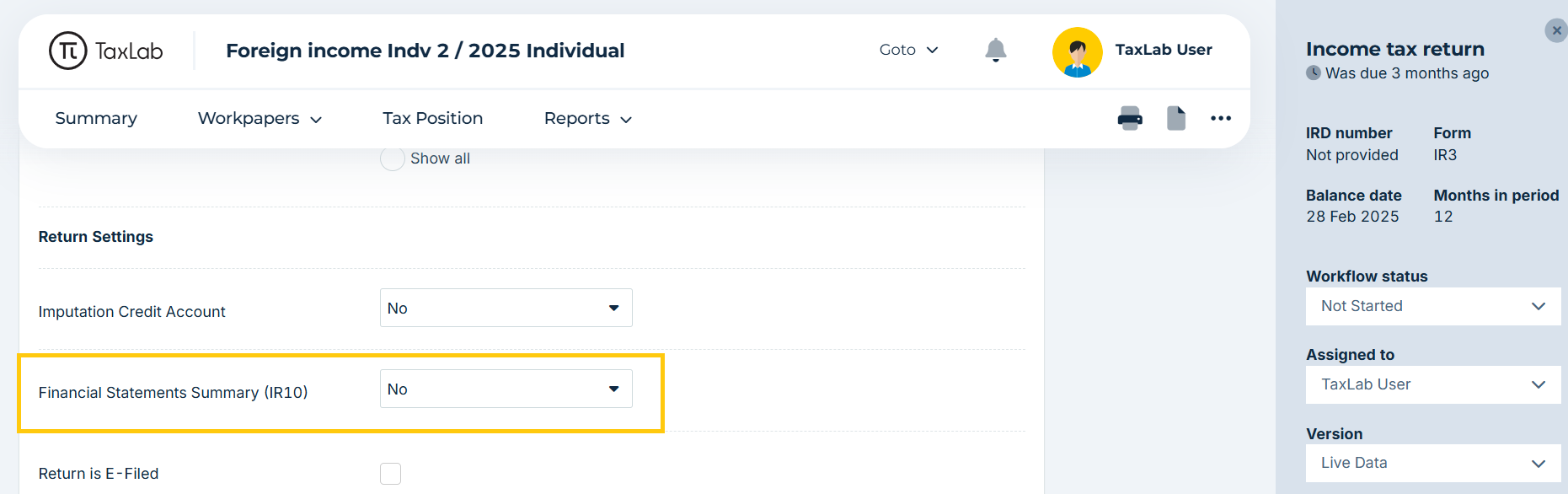
Assign accounts to the IR10
Accounts can be assigned in the IR10 manually, or by importing from Excel or Xero. Accounts only need to be assigned in the first year that they are used in the trial balance. The assignment will roll forward to the next year.
When you roll over to a new tax year, accounts remain allocated to the IR10 disclosure assigned previously. Any new accounts added will still need to be assigned to a disclosure.
Manually assign accounts to the IR10
- From the entity's tax year summary, in the navigation bar select Workpapers > Accounts.
- From the Trial balance, navigate to the IR10 tab.
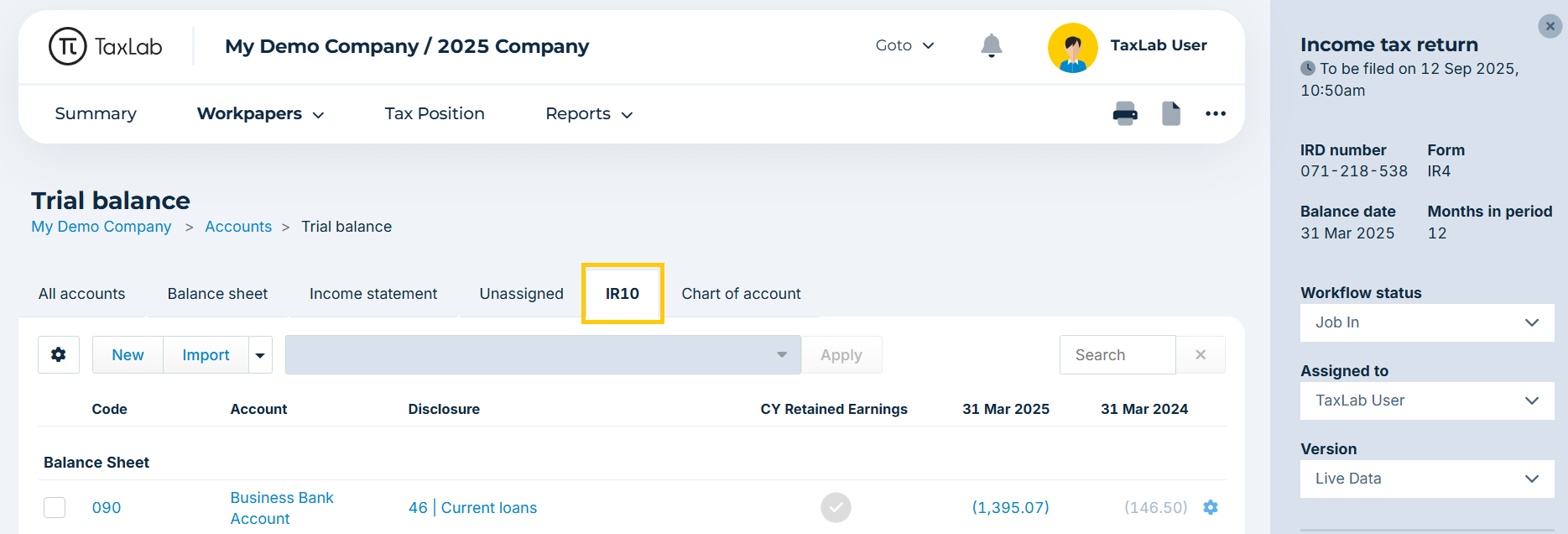
- Select the checkboxes next to the account or accounts you need to assign to an IR10 disclosure.
- From the IR10 Disclosure dropdown, select the disclosure you want to assign the account(s) to.
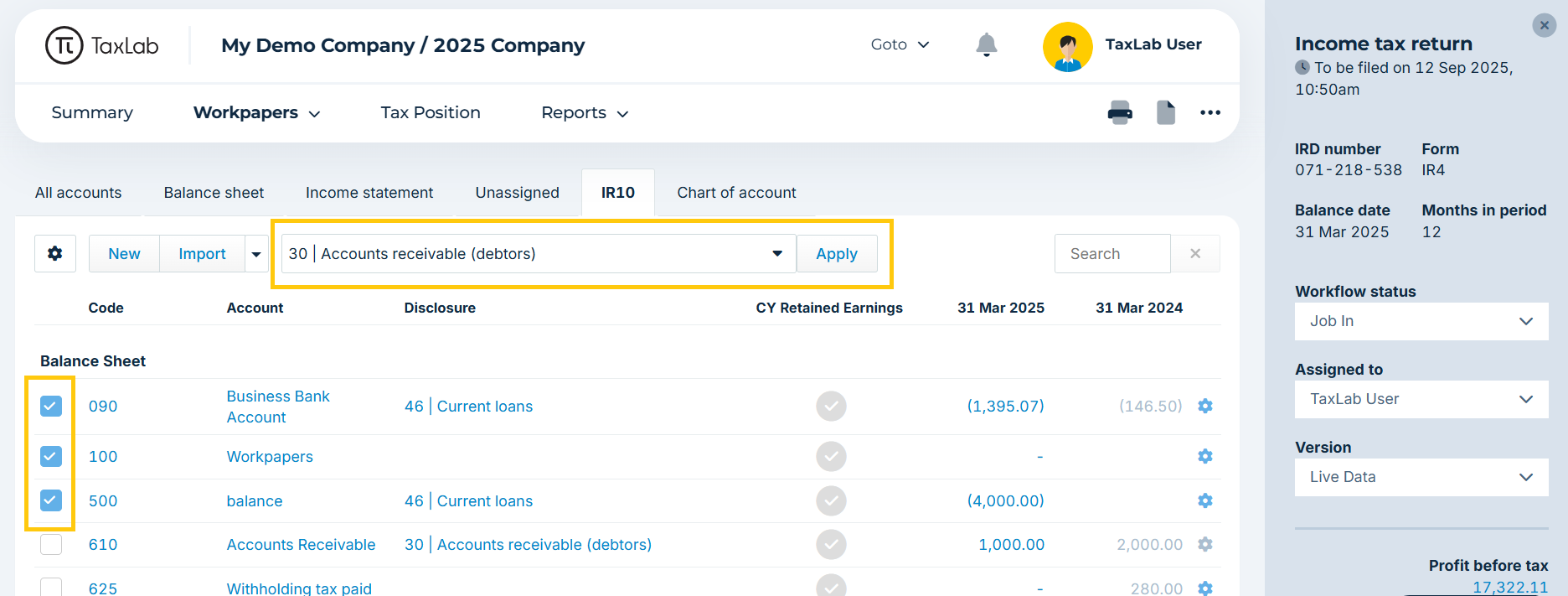
- Select Apply.
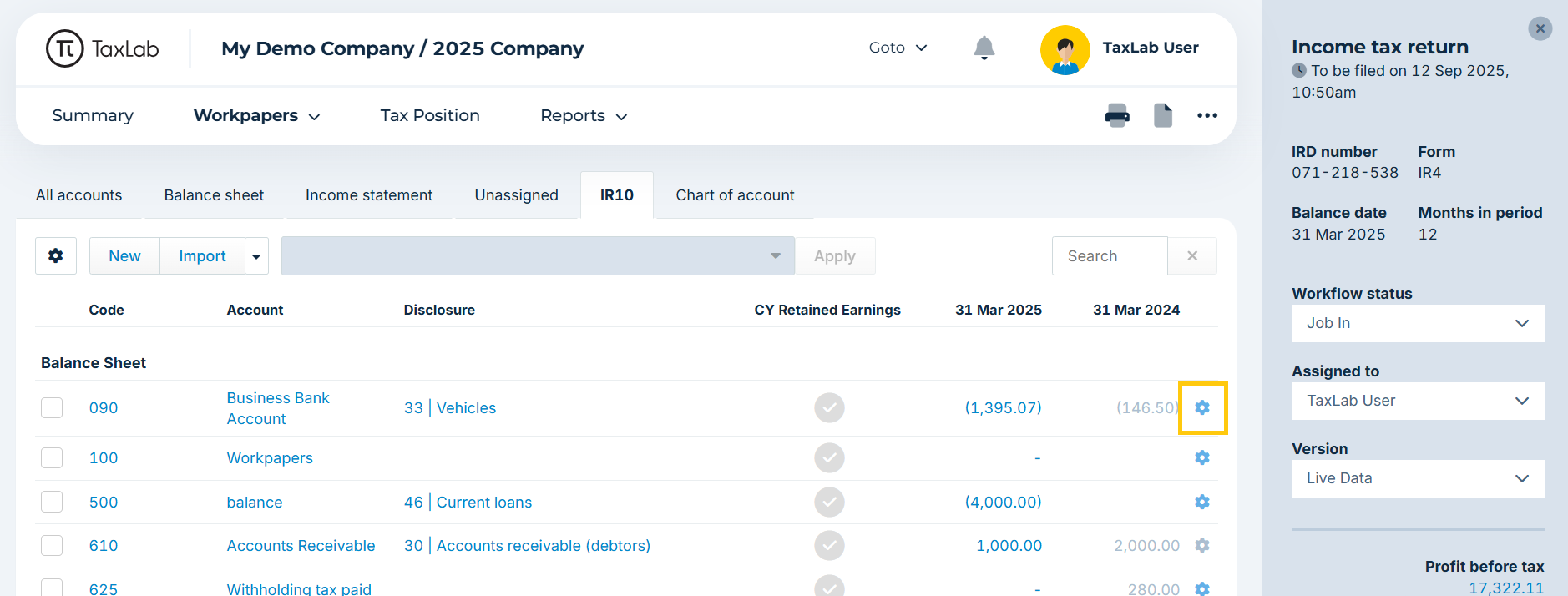
- Alternatively to assign a single account, use the cog icon alongside the account.
Assign accounts to the IR10 via import from Xero
If the Xero chart of accounts has been mapped to report codes in Xero, this information can be imported when the trial balance is brought in from Xero. This automatically assigns the trial balance accounts to the correct IR10 disclosures.
- From the entity's tax year summary, in the navigation bar select Workpapers > Accounts.
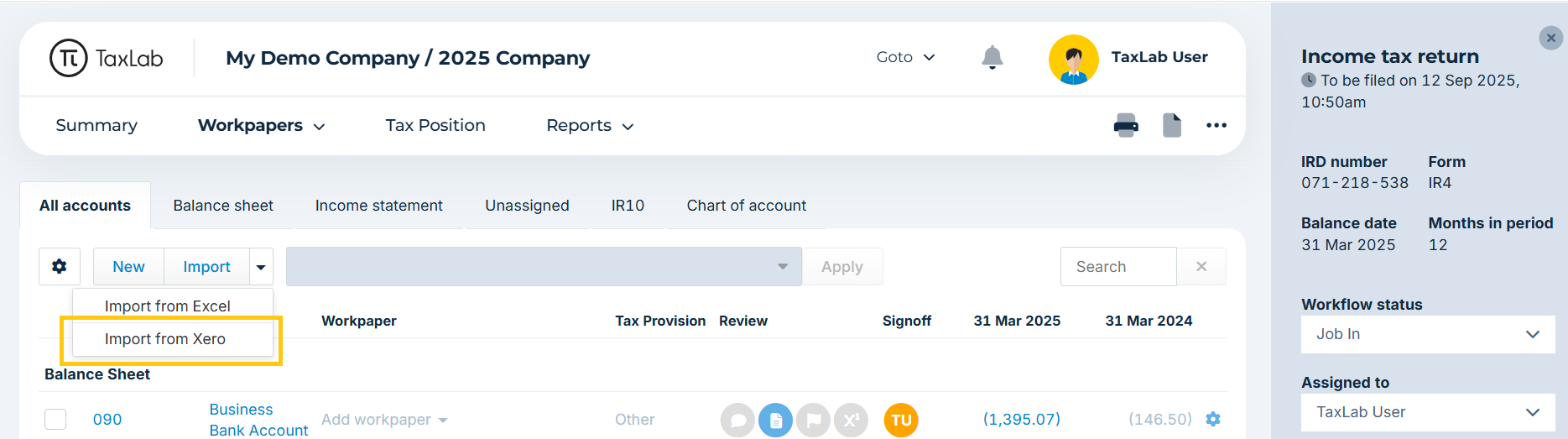
- From the Trial balance, select the dropdown arrow next to Import > Import from Xero.
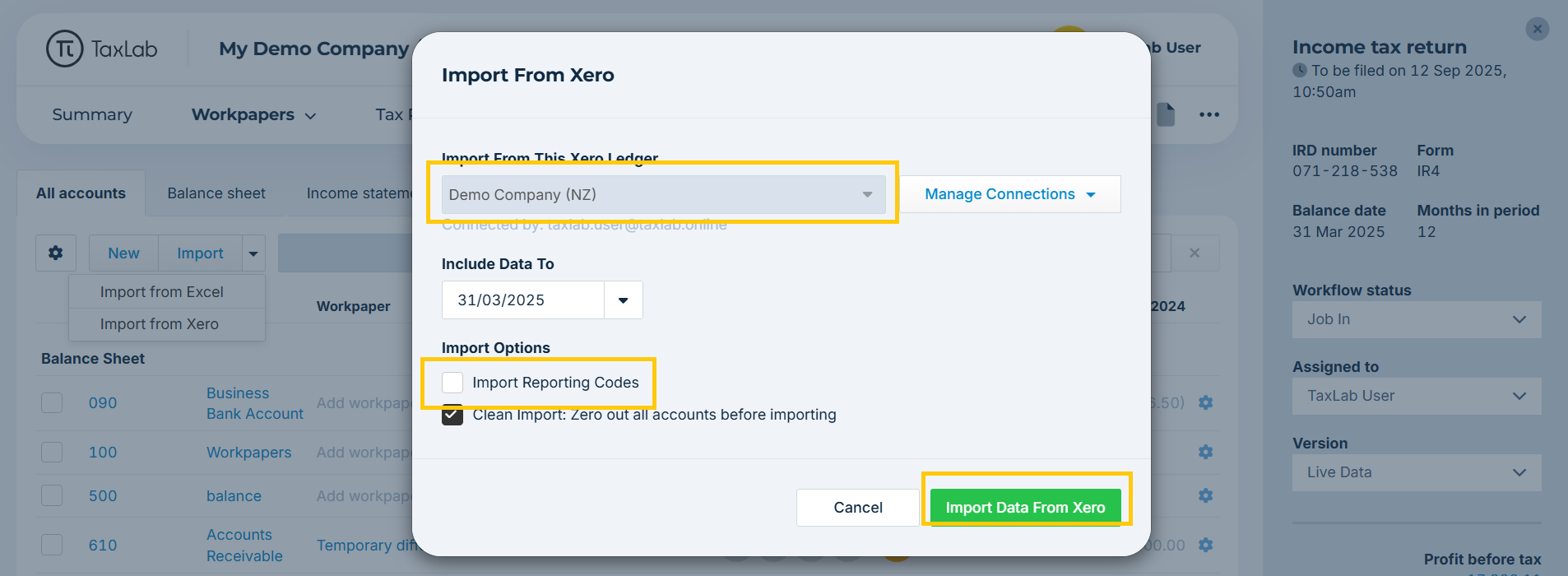
- Ensure your entity has been connected to the right Xero ledger.
- Under Import Options, select the Import Reporting Codes checkbox.
- Select Import Data From Xero.
Assign accounts to the Current Year (CY) Retained Earnings
In order for an IR10 to balance, all accounts in the income statement (excluding income tax expense) need to be assigned to CY Retained Earnings.
- From the entity's tax year summary, in the navigation bar select Workpapers > Accounts.
- From the Trial balance, navigate to the IR10 tab.
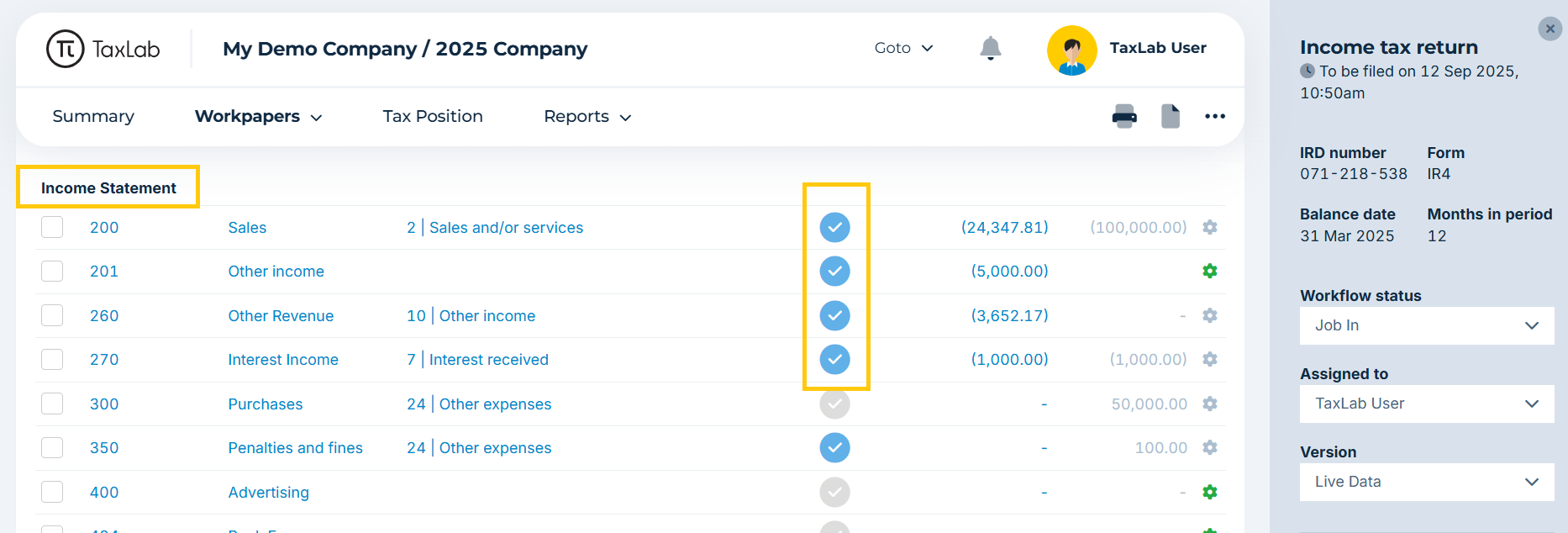
- Locate the accounts grouped under the heading Income Statement.
- In the CY Retained Earnings column select the grey ticks next to every account on the trial balance to turn them blue. A blue tick indicates that an account has been included in the CY Retained earnings.
Review the IR10 return
- From the entity's tax year summary, in the navigation bar select Reports > Tax Return forms
- Select the Financial Statements Summary (IR10) tab
Complete additional disclosures
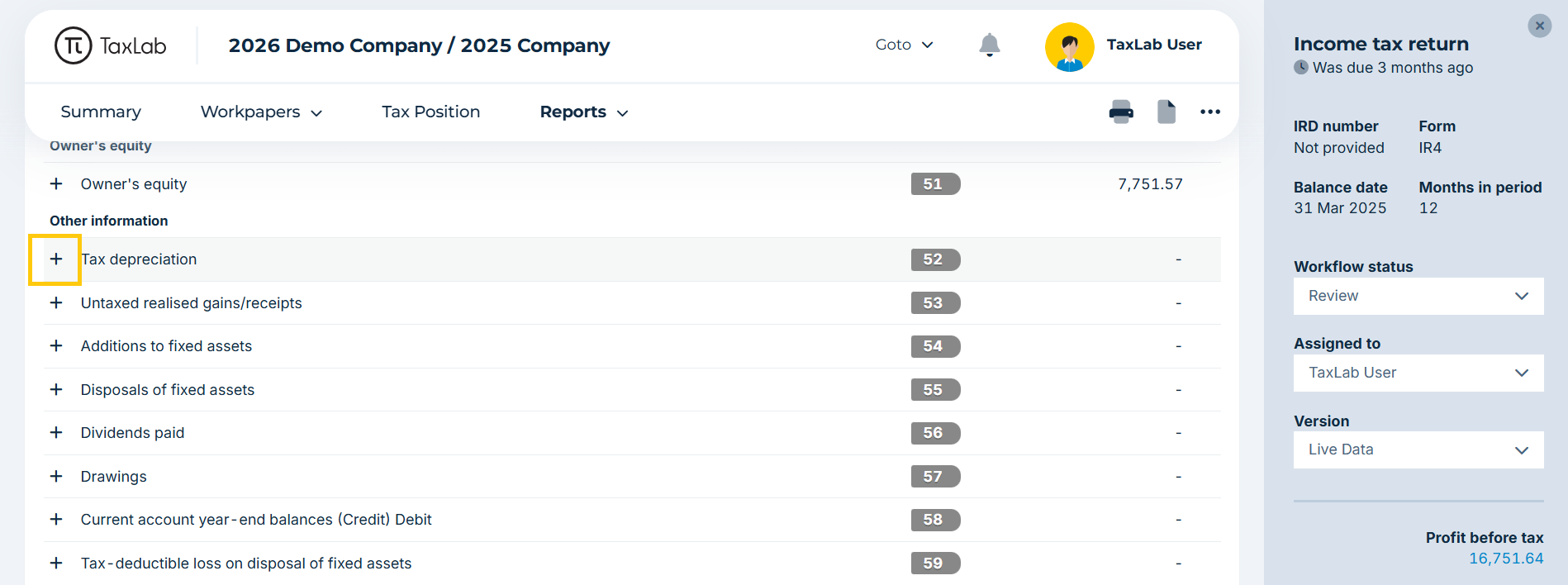
The Other information fields at the end of the IR10 are required to be completed, as they are not auto-populated by the software. 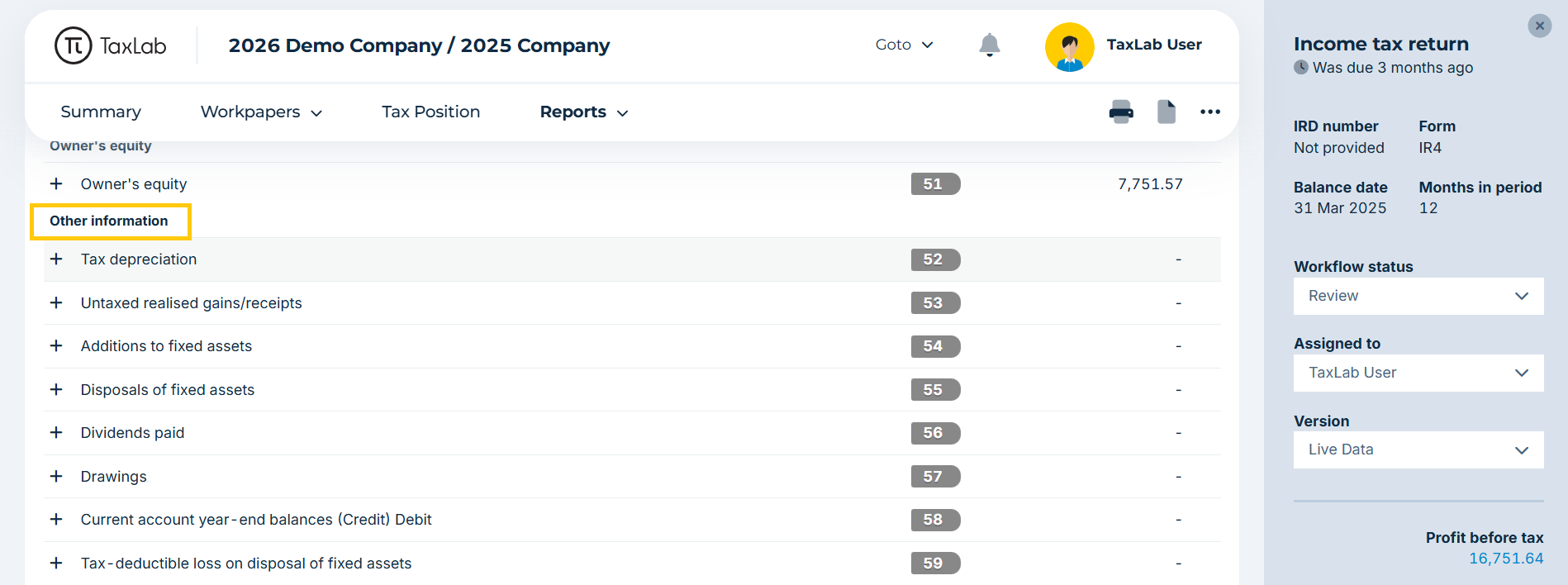
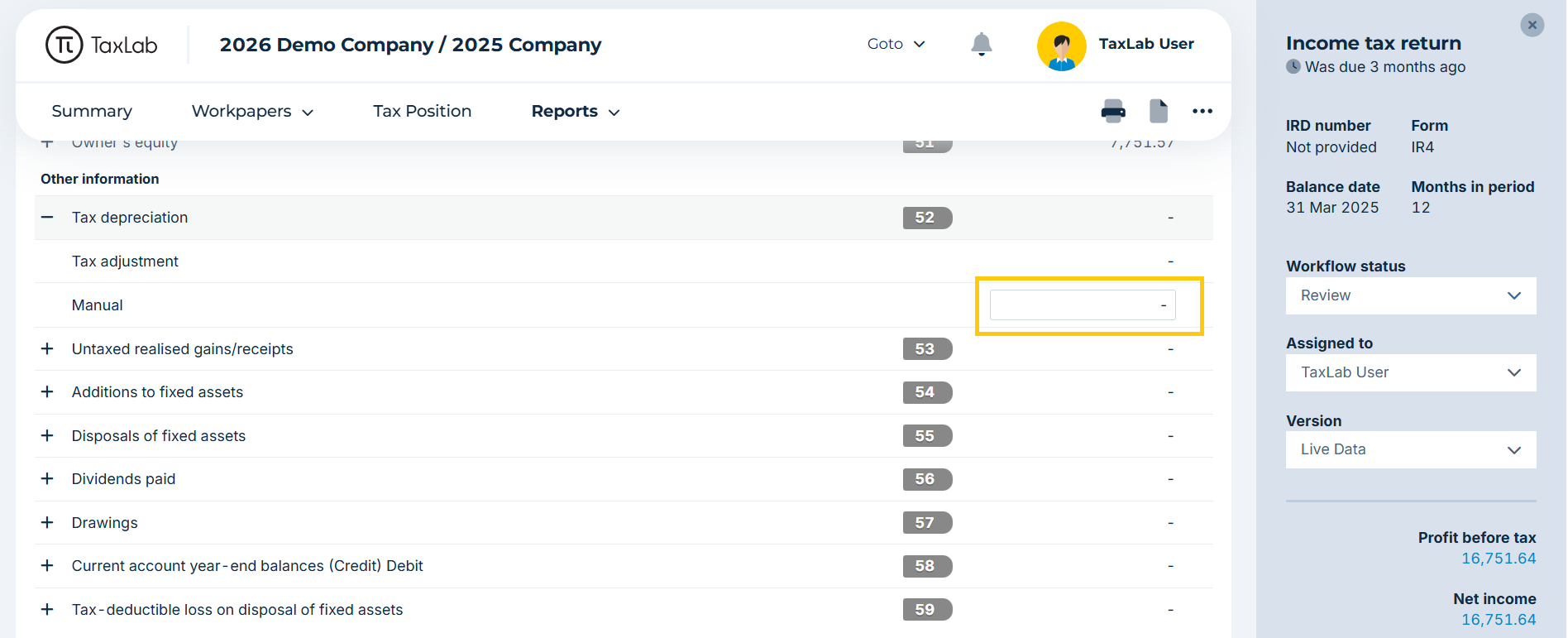
- To add a disclosure, select the plus icon to expand
- Enter figures in the box on the line named Manual
Accounts not in IR10
To check for any accounts that have not been mapped to the IR10, under the Accounts not in IR10 heading, select the plus icon to expand Unreconciled.
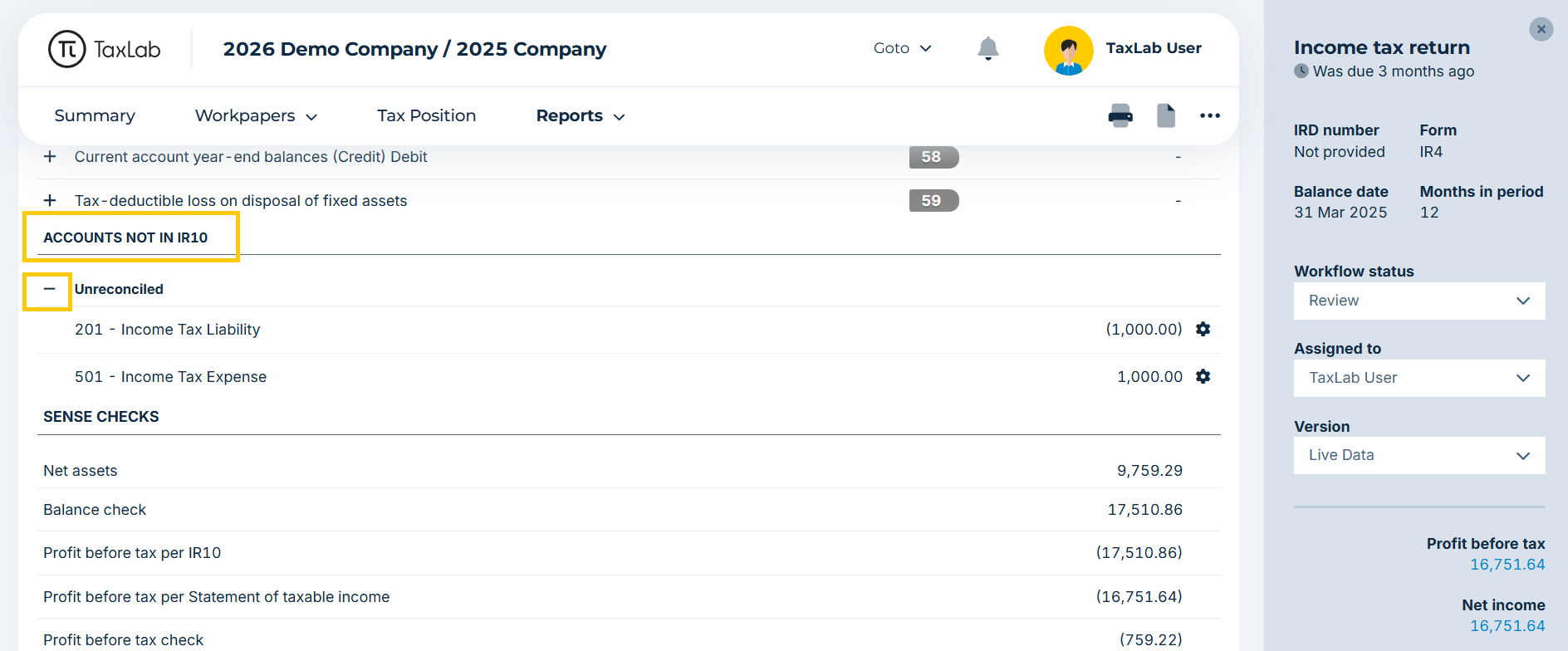 Any accounts that have not been assigned to an IR10 disclosure will be listed. Income tax expense accounts should be included here, as they are not to be included in the IR10. If any other accounts are displayed:
- Select the cog to the right of the account
- Select the correct IR10 disclosure
Sense checks
The IR10 workpaper includes built in sense checks to ensure data balances and sign conventions are met, so that the return will not return an error when e-filed. Sense checks are located at the end of the IR10 return. 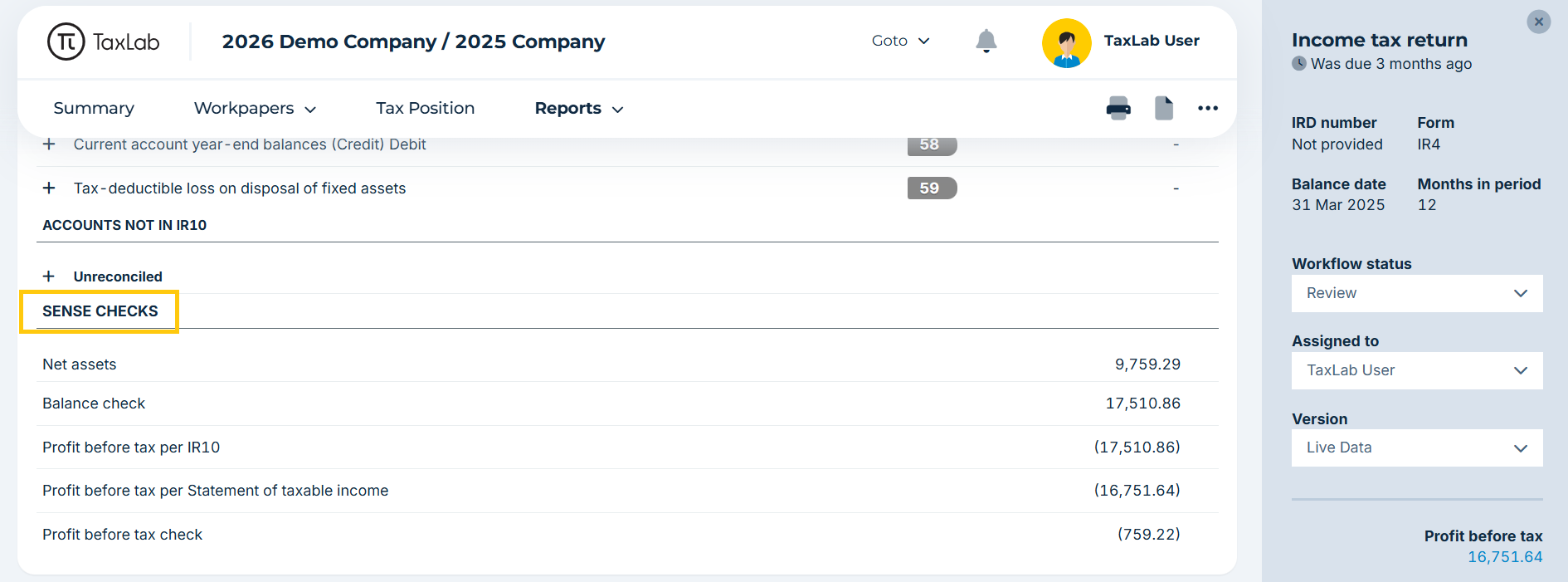
Once all relevant accounts have been assigned to the IR10 and any manual disclosures have been entered, use the sense checks to confirm that all accounts have been assigned correctly and that the IR10 balances. The Balance check and Profit before tax check should both equal 0.
Troubleshooting
The Profit before tax check and balance check are not nil
Check the following:
- Ensure that all income statement accounts have been ticked include in CY Retained Earnings (except income tax expense)
- Ensure that every account with a balance has been assigned an IR10 disclosure (except income tax expense).
- Ensure that income tax expense has an Exclude from PBT workpaper attached in the trial balance.
- Check that the Update Gross Profit Formula button has been selected (in the Income section of the IR10 Return)
- Check that you have coded everything correctly - assets, liabilities, income and expenses are all allocated to the correct IR10 disclosures.
- If a Sign Convention label appears next to a disclosure, this is an indication that there is an account that hasn’t been coded correctly to the IR10, and IR are expecting the balance to be the opposite sign. Recode this to a relevant sign
Why is a cog greyed out in the IR10?
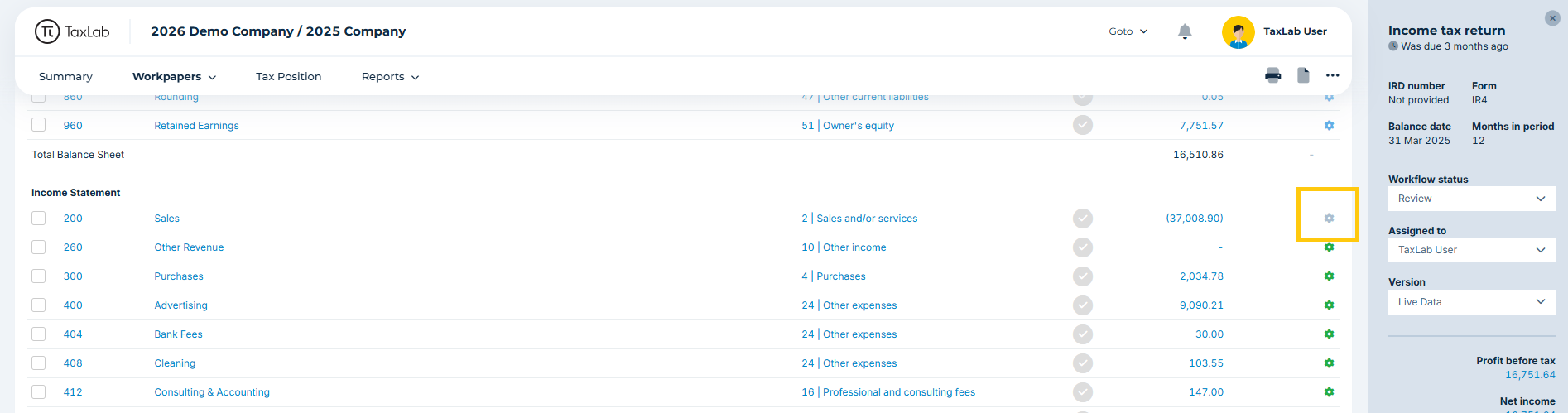
If a workpaper or a breakdown has been added to an account in the trial balance, it cannot be recoded in the IR10 without first removing the workpaper or breakdown.
How was the tax adjustments figure calculated?
Inland Revenue expects the taxable income on the IR10 to match the taxable income on the corresponding tax return form. For example, in a company, Current year taxable profit/loss in the IR10 is expected to match Total income or net loss in the IR4. TaxLab calculates the Tax adjustments in the IR10 as the difference between the IR10 Current year taxable profit/loss and the main form Income after expenses/Total income or net loss.
Why are subvention payments included in tax adjustments figure?
IR requires that Current year taxable profit/loss in the IR10 must match Total income or net loss in the IR4, which does not include subvention payments. Therefore, any subvention payment amount is reported under Tax adjustments in the IR10.
Why are residential rental interest deductions included in tax adjustments in a Partnership or Look-through Company?
IR requires that Current year taxable profit/loss in the IR10 must match Total income/loss after expenses in the IR7, which does not include residential rental deductions. Therefore, the residential rental deduction amount is reported under Tax adjustments in the IR10.
IR7 and IR10 residential rental disclosures
IR have specified how to include residential rental income and deductions in the IR7 and IR10. Find out more in our support article: Residential rental property workpapers & disclosures
Related articles
Assign accounts in a trial balance
Was this article helpful?
That’s Great!
Thank you for your feedback
Sorry! We couldn't be helpful
Thank you for your feedback
Feedback sent
We appreciate your effort and will try to fix the article