Overview
TaxLab allows the transfer of income tax refunds between tax years and tax types within an entity, and also between entities. The transfer request can be entered into the software, and is transmitted to IR as part of e-filing the income tax return. A maximum of twenty requests per tax return can be entered.
Request an income tax transfer out
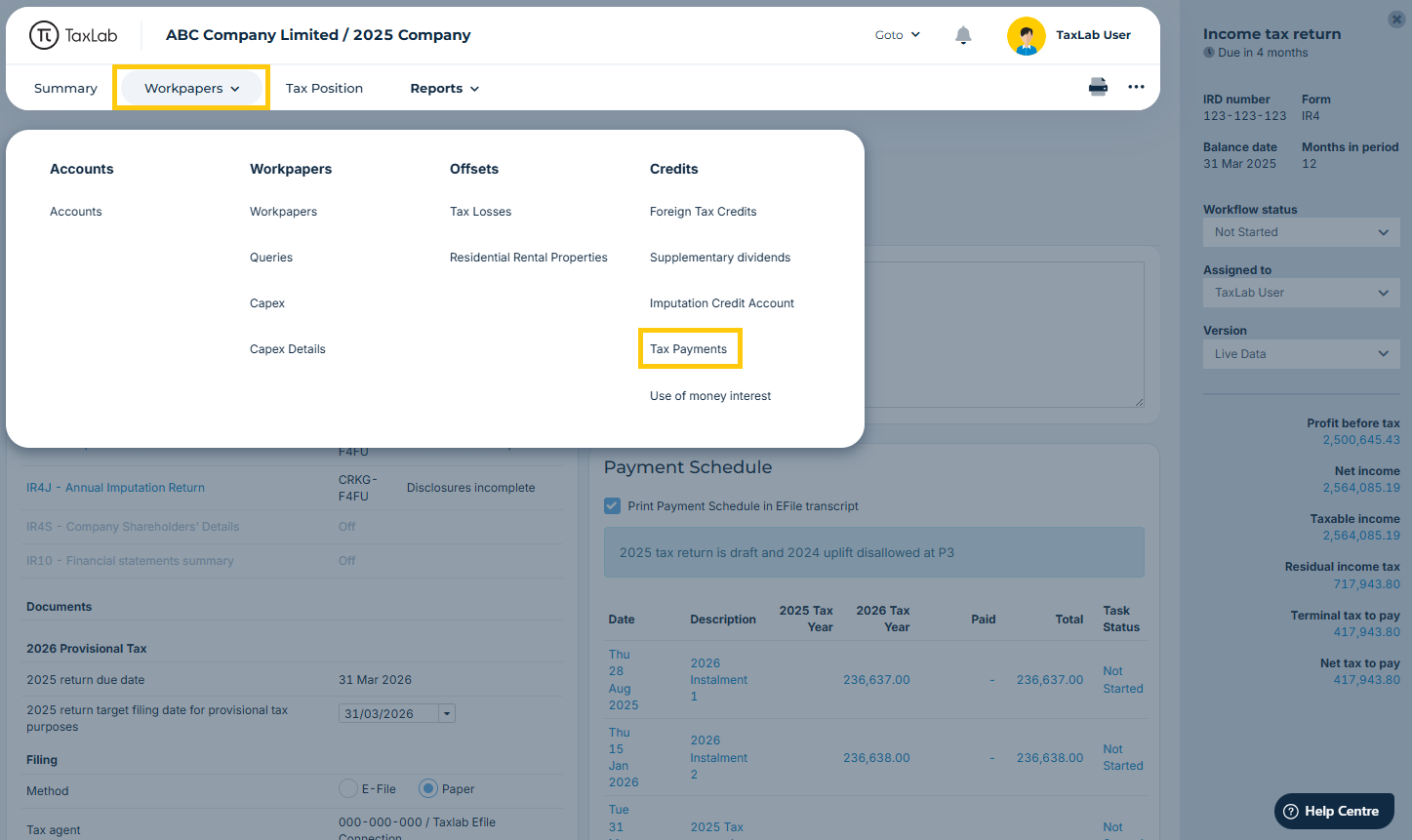
- From the entity's tax year summary, in the navigation bar select Workpapers > Tax Payments.
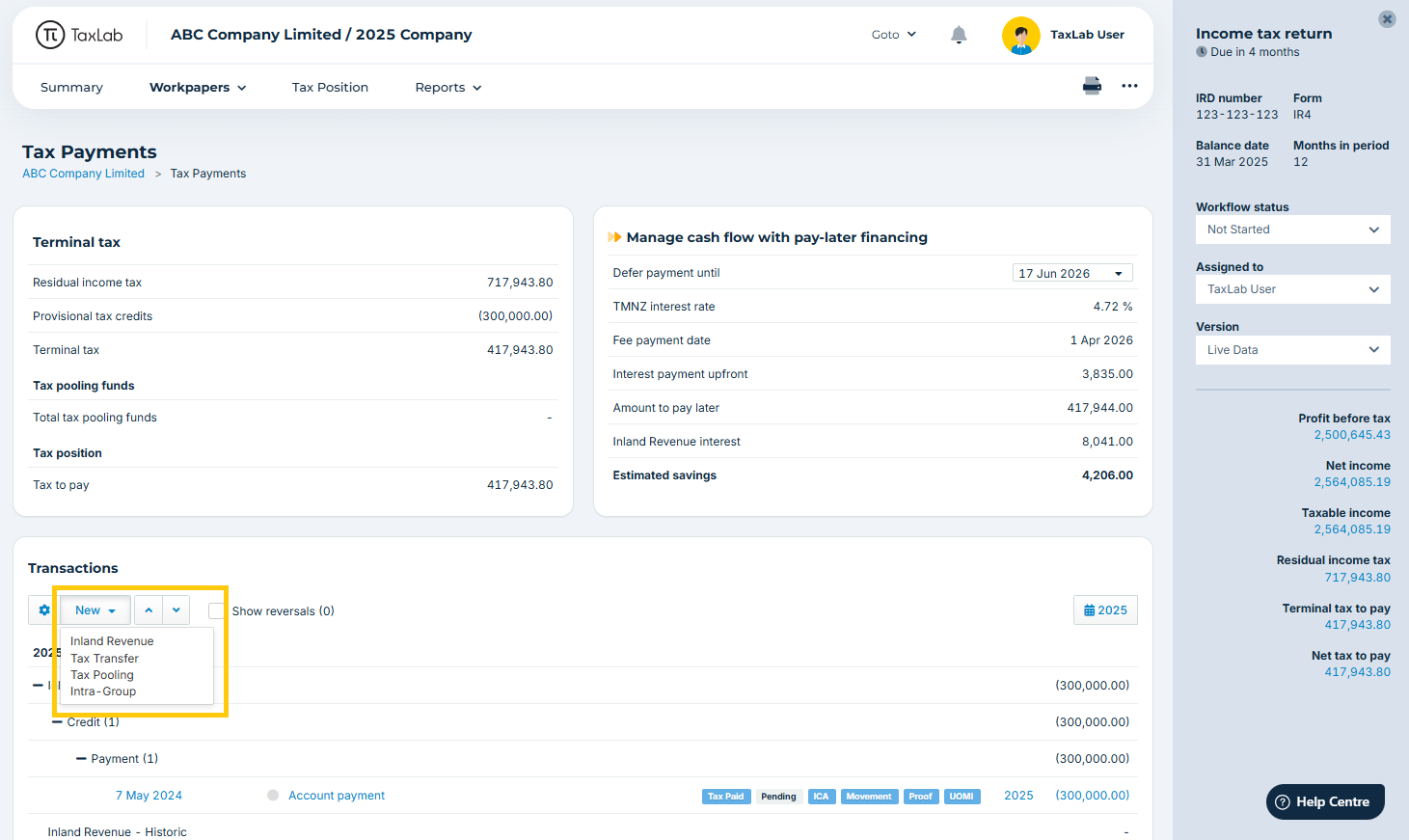
- In the Transactions panel select New > Tax Transfer. This creates a tax transfer request transaction.
- Update the details of the tax transfer request. The default transaction is a transfer to the next year’s provisional tax.
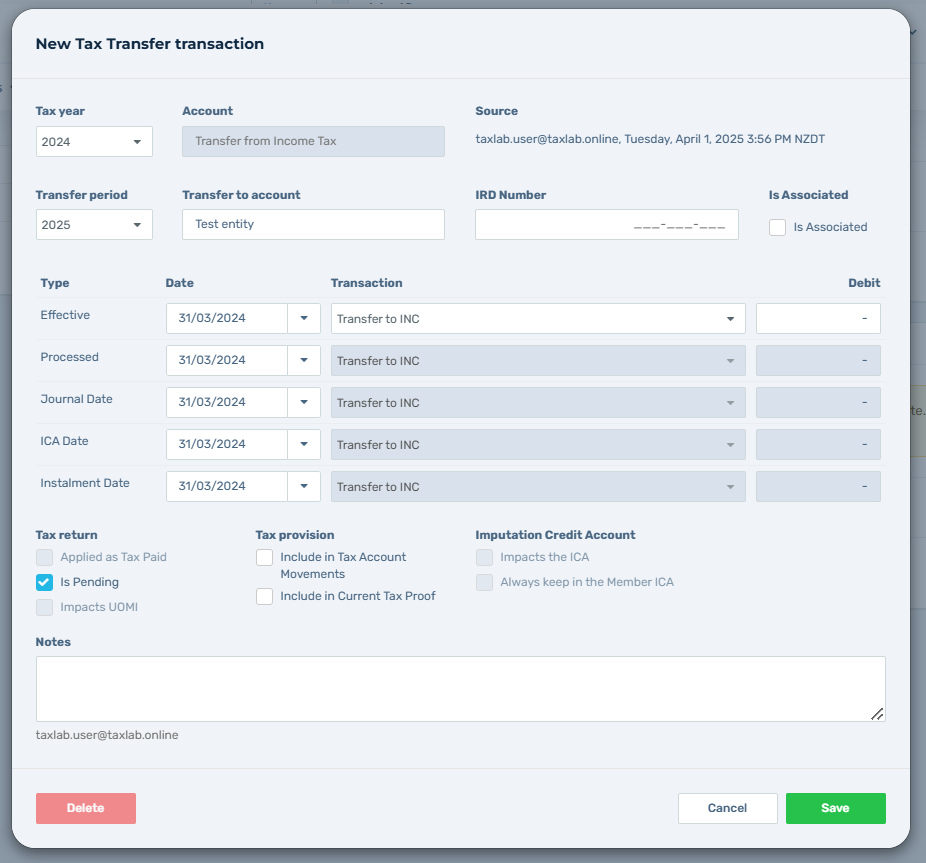
- Transfer filing period [E-filed]: the tax year the transfer will be made to.
- Transfer to account: the recipient of the transfer. This can be the entity itself, or another entity.
- IRD Number [E-filed]: the recipient’s IRD number.
- Is Associated [E-filed]: tick if the recipient is an associated entity.
- Date: the date of the transaction. This is informational only and is not filed with IR.
- Transaction [E-filed]: the account type at Inland Revenue the transfer is being made to.
- Debit [E-filed]: the amount to be transferred. This is always entered as a positive number.
- Is Pending: check to include the transaction in the payment schedule. It is ticked by default.
- Optional: add a note.
- Select Save.
What date does Inland Revenue apply to transfers?
The date Inland Revenue applies to a transfer depends on whether the transfer is going to an associated entity or a non-associated entity.
The 'Is Associated' checkbox tells Inland Revenue that the transfer is going to an associated entity. This ensures that IR processes the transfer with the relevant effective date for transfers to the receiving account. This is important because the Date field on the transfer is not filed with IR.
When the transfer is to an entity that is associated:
- If the credit is from excess tax deducted (for example RWT deducted on interest), the effective date IR processes should be the day after the balance date (or 1 April if the balance date is before 31 March), or;
- If the credit is from overpaid provisional tax the effective date IR processes should be the day the payment was made.
When the transfer is to an entity that is not associated:
- The effective date should be the day after the return is filed or the day IR processes the transfer.
Please contact IR if you have concerns about the effective date that has been applied to a transfer.
Record an expected income tax transfer in
If the tax transfer received needs to be displayed in the tax position of the entity receiving the transfer it must be manually entered as an IR transaction in that entity's income tax return. It cannot be entered as a tax transfer because IR does not accept negative tax transfer requests.
- From the entity's tax year summary, in the navigation bar select Workpapers > Tax Payments.
- In the Transactions panel select New > Inland Revenue.
- Update the details of the transaction. For the transaction type select Transfer from customer.
- Enter the amount to be received as a credit (negative number), and ensure Applied as Tax Paid and Pending are checked.
- Select Save.
The transaction will display in the entity's tax position as tax paid.
Once the transfer has been processed by IR, a new tax payment transaction will display through the IR data feeds, creating a duplicate to the manual transfer entered above. To correct this (and eliminate double counting), simply unselect the Tax Paid and Pending badges on the manual transaction that was created.
View transfers
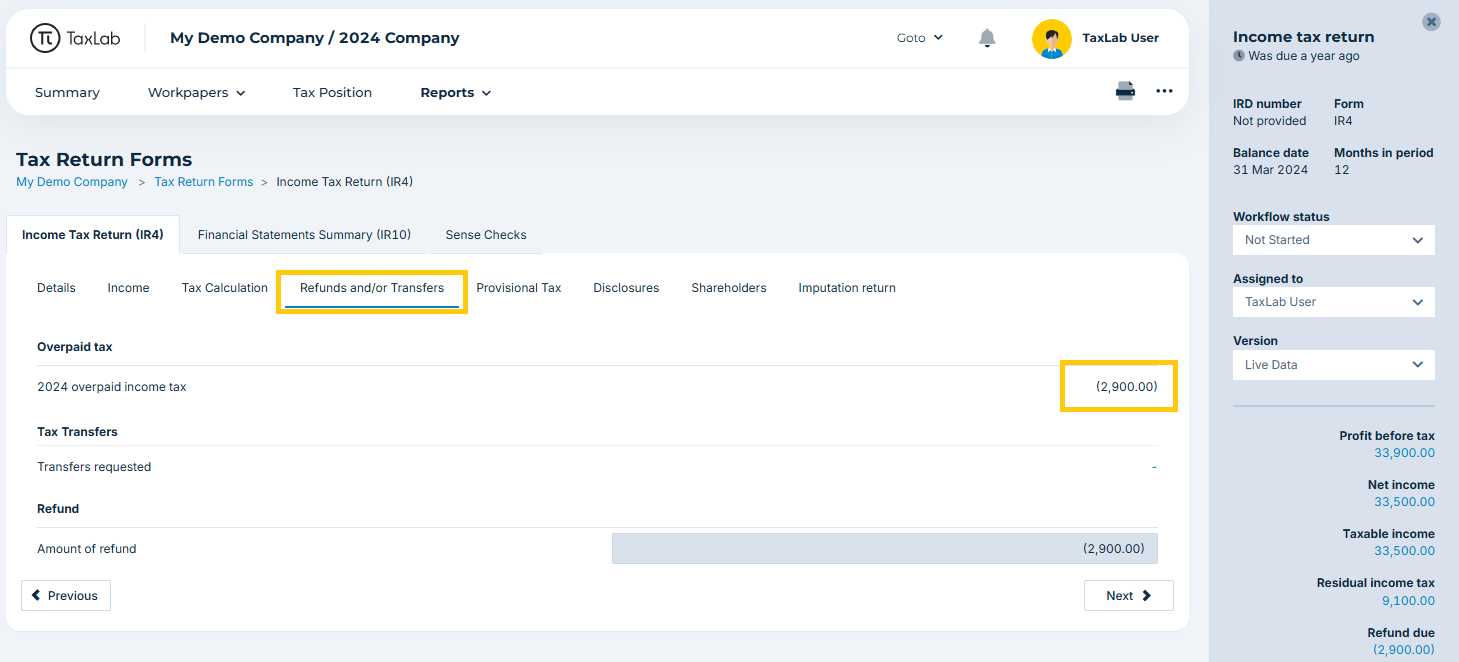
To view the total transfers made for an entity and confirm they do not exceed the refund;
- From the entity's tax year summary, in the navigation bar select Reports > Tax Return Forms > Refunds and/or Transfers.
A negative balance remaining indicates a refund.
Troubleshooting
The transfers requested exceed the refund available
If a return is assessed with a lower than expected refund, IR will transfer what they can up to their assessed refund amount.
If multiple transfer requests are made, and the available refund is less, they will be processed to the extent of the refund available. Therefore one transfer may be less or some may not be processed at all. There is no way to specify the order in which transfers are processed.
The receiving account is locked
If the account the transfer is being made to is locked by Inland Revenue, they will not process the transfer. In this case the funds will be refunded to the taxpayer. This can occur if the account is marked as using tax pooling, or Inland Revenue deem the account to be closed, such as a past period.
Inland Revenue does not have bank details
Inland Revenue needs to be able to complete all the actions on a refund at one time. Where a refund is partially transferred and partially refunded, it will not be processed if they do not have a bank account to refund the balance to. Once Inland Revenue have a bank account, both the transfer and the refund will be processed.
Transfers to tax types other than INC, SLS or FAM
Currently transfers to other periodic tax types like GST or RWT are not supported. If you are wanting to request a transfer to another tax type not listed, contact IR to request this prior to filing the return.
Related articles
Was this article helpful?
That’s Great!
Thank you for your feedback
Sorry! We couldn't be helpful
Thank you for your feedback
Feedback sent
We appreciate your effort and will try to fix the article